



Yes, you can add additional animations to a Wix website. Wix includes built-in animation tools for scroll effects, entrance animations, and hover interactions. You can also add custom animations using Velo by Wix (JavaScript-based coding) or third-party libraries like GSAP and Animate.css for more advanced motion effects.
Most visitors decide whether to stay on your website within the first few seconds. A static page with no movement gives them very little reason to stick around. Animations change that. They guide attention, create flow, and make a website feel alive and professional.
So, can you add additional animations to a Wix website? Absolutely. Wix gives you solid built-in animation tools straight from the editor. And if you need more control, there are advanced options using code and third-party libraries that take things much further.
This guide covers everything you need to know: what animations are available, how to use them, how to add custom effects, and when animations help (or hurt) your site. By the end, you will have a clear picture of what is possible on the Wix platform and how to make your website stand out.
What Are Website Animations and Why Do They Matter?
Website animations are visual effects that create movement on your web pages. They can be subtle, like a button that changes color when you hover over it. Or they can be bold, like a full-screen parallax scroll that shifts backgrounds at different speeds as users move down the page.
Animations serve a real purpose. They are not just decoration. Here is what they actually do for your website:
- Guide user attention toward key elements like calls-to-action or featured products
- Improve user experience by making navigation feel smoother and more intuitive
- Communicate professionalism and build trust with first-time visitors
- Reduce bounce rates by keeping users engaged longer
Good UI/UX design uses motion intentionally. Every animation should have a reason for being there. That is the difference between a site that feels polished and one that feels chaotic. If you want to learn more about what separates average websites from truly impressive ones, check out this related read on what makes a website look premium.
Can You Add Additional Animations to a Wix Website?
Yes. Wix supports multiple levels of animation, from drag-and-drop built-in effects to fully custom JavaScript animations using Velo by Wix. You do not need to be a developer to use the basics. But if you want more advanced control, Wix does allow that too.
Here is a quick breakdown of your options:
- Built-in Wix animations -- Available directly in the Wix editor with no code required
- Velo by Wix -- A development platform built into Wix that lets you write JavaScript for custom interactions
- Third-party animation libraries -- Tools like GSAP or Animate.css that can be integrated via Velo
Each option suits a different level of technical skill and design goal.
Built-In Wix Animation Features
Wix gives every user access to a set of native animation tools. These are easy to use and require no coding. Here is what is included.
Scroll Animations
Scroll animations trigger when a user scrolls down the page. In Wix, you can apply these to individual elements, sections, or backgrounds.
Common scroll animation options in Wix include:
- Fade in as the element enters the viewport
- Slide in from the left, right, top, or bottom
- Zoom in as the section becomes visible
These work especially well for service pages, landing pages, and portfolio sections where you want content to reveal itself naturally as users read down the page.
Entrance Animations
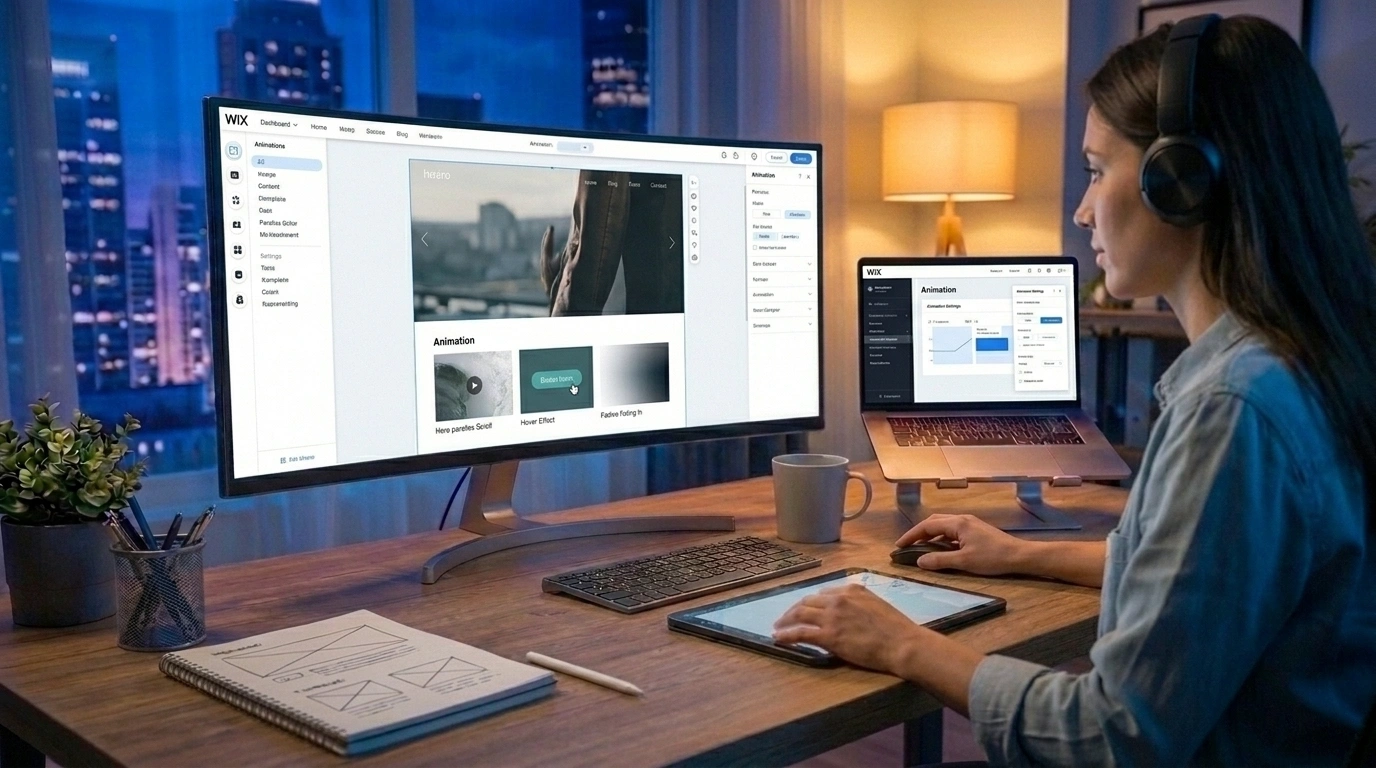
Entrance animations play when an element first appears on screen. You can set them directly on any element in the Wix editor by clicking the element and selecting "Animation."
Wix offers a variety of entrance effects including:
- Fade
- Float
- Fold
- Fly in
- Spin
- Zoom
You can also control the speed, delay, and direction of each animation. This gives you decent control without touching a single line of code.
Hover Effects
Hover effects activate when a visitor moves their cursor over a specific element. Wix supports hover animations on buttons, images, boxes, and more.
Examples of hover effects available in Wix:
- Color changes on buttons
- Image zoom-in on hover
- Shadow or border effects on cards
- Opacity changes
Hover effects are particularly useful for interactive elements. They signal to users that something is clickable or important, which improves usability and can directly increase conversions.
Best Animation Effects You Can Add to a Wix Website
Now that you know what the built-in tools offer, let's look at the specific animation effects that work best on Wix sites and why each one is worth using.
Fade In and Fade Out Effects
Fade animations are the most versatile option available. They are subtle, smooth, and work on almost any type of content including text, images, buttons, and full sections.
A fade-in effect makes content appear gradually rather than suddenly loading on screen. This feels more natural to the human eye and reduces the jarring effect of content "popping" into view. Fade effects are perfect for hero sections, testimonials, and body text blocks.
Parallax Scrolling
Parallax scrolling is a technique where the background moves at a slower rate than the foreground as the user scrolls. This creates a sense of depth and dimension that makes flat web pages feel three-dimensional.
Wix supports parallax scrolling for background images and strips. To enable it:
- Click on a section or strip in the Wix editor
- Go to "Change Strip Background"
- Select an image and enable the "Scroll Effects" or "Parallax" option
Parallax works best when used on one or two key sections rather than throughout the entire page. Overuse can slow down performance and overwhelm visitors.
Floating and Bouncing Elements
Floating or bouncing animations add a continuous, looping movement to elements on your page. A small icon that gently bobs up and down, or a CTA button that pulses slightly, draws the eye without being disruptive.
These effects are useful for:
- Scroll-down arrow indicators
- Featured badges or labels
- Promotional banners
Wix allows some looping animation options natively. For more advanced looping effects, Velo by Wix gives you full control using CSS animations or JavaScript.
Slide-In Animations
Slide-in animations bring elements onto the screen from a specific direction. Text sliding in from the left while an image slides in from the right creates a sense of balance and movement that makes layouts feel dynamic.
In the Wix editor, you can apply slide-in effects to any element through the "Animation" panel. Choose your direction, set the duration, and add a small delay if you want multiple elements to appear in sequence.
Slide-in effects work well on:
- Feature highlights
- Team member cards
- Before-and-after sections
- Statistics or number blocks
Zoom Animations
Zoom animations scale an element up or down as it enters the viewport or when a user interacts with it. A subtle zoom-in on a product image or a section headline creates emphasis and draws focus.
For image galleries and portfolio sections, zoom-on-hover is especially effective. When a visitor hovers over a project thumbnail and the image gently zooms in, it signals interactivity and encourages clicks.
Mouse Hover Animations
Mouse hover animations respond to cursor position or movement. In their simplest form, they change the appearance of a button or card when a user hovers over it. More advanced hover effects can shift background colors, reveal hidden text overlays, or animate icons.
Wix supports basic hover animations natively. If you need something more complex, such as a card that flips to reveal more information on hover, that can be built using Velo and CSS.
For inspiration on how hover effects contribute to a great user experience, this breakdown of the anatomy of a perfect service business website is worth a read.
Loading Animations
Loading animations display while your page or a specific element is loading. A small spinner, a progress bar, or an animated logo keeps users informed and reduces perceived wait time.
Wix does not have a built-in loading animation editor, but you can create custom loading screens using Velo by Wix. This involves hiding page content on load and showing a custom animation element before revealing the full page.
Loading animations are optional for most sites. But for media-heavy portfolios or web applications, they improve the experience significantly.
How to Add Custom Animations to Wix Using Code
Built-in Wix animations cover a lot of ground. But if you need effects that are more tailored or complex, coding gives you that extra layer of control.
Using Velo by Wix
Velo by Wix is a built-in development platform that lets you add JavaScript and APIs directly to your Wix site. You can use Velo to:
- Trigger animations based on user actions (scrolling, clicking, form submission)
- Build looping CSS animations on specific elements
- Create custom timelines where multiple elements animate in sequence
- Control animation timing, easing, and direction with precision
To get started with Velo, open the Wix Editor and click "Dev Mode" to enable Velo. From there, you can write code in the built-in code panel attached to any page.
Here is a simple example: if you want a headline to animate only after a button is clicked, you would use Velo to listen for the click event and then trigger the animation on the target element using the Wix wix-animations API.
Adding Third-Party Animation Libraries
Velo also allows you to load external JavaScript libraries into your Wix site. Popular animation libraries that work well with Wix include:
- GSAP (GreenSock Animation Platform) -- One of the most powerful JavaScript animation libraries available. Useful for timeline-based, sequenced animations.
- Animate.css -- A simple CSS library that adds pre-built animation classes to HTML elements.
- ScrollMagic -- Triggers animations based on scroll position, useful for storytelling-style pages.
To add a third-party library, use Velo to load it via a <script> tag in the custom code section of your Wix site settings, then call the library functions from your Velo code.
Note: Adding third-party libraries requires some JavaScript knowledge. If this feels out of reach, working with a web design and development team familiar with Wix can save a lot of time and frustration.
Animation Best Practices for Wix Websites
Using animations effectively requires some discipline. Here are the key principles to follow:
- Keep animations short. Most entrance animations should last between 0.3 and 0.8 seconds. Longer animations feel slow and drag the user's attention.
- Use delays thoughtfully. Stagger animations slightly when multiple elements appear at once so they do not all load at the same time.
- Maintain consistency. Choose one or two animation styles and use them throughout your site. Mixing too many styles looks unprofessional.
- Always test on mobile. Animations that look great on desktop can feel heavy or broken on smaller screens. Preview every animation in Wix's mobile editor.
- Check page speed. Heavy animations can slow load times, which hurts SEO and user experience. Use Google PageSpeed Insights to measure impact.
Good animation follows the same principles as good UI/UX design. Every element should serve the user, not distract them.
When Animations Hurt More Than Help
Animations are powerful, but they can also work against you. Here are the situations where animations do more harm than good:
Too many animations at once. If everything on your page is moving, nothing stands out. Users feel overwhelmed and lose focus.
Animations that block content. If an animation delays content from appearing, users may leave before they ever see your message. Always prioritize fast content delivery.
Ignoring accessibility. Some users experience motion sickness or have vestibular disorders that make heavy animations uncomfortable. Wix does not automatically apply the prefers-reduced-motion media query, so you may need to handle this via Velo if your audience includes users with these sensitivities.
Using animations to mask poor design. Animations should enhance a strong layout, not distract from a weak one. If your site has common homepage mistakes, fixing those first will always deliver better results than adding motion effects on top of them.
Autoplay animations on mobile. These consume battery and data, and they often perform poorly. Keep mobile animations minimal.
How Razen Creations LLC Can Help
Adding animations to a Wix site is straightforward at the basic level. But getting animations to work seamlessly across devices, perform well, and align with your brand takes skill and experience.
At Razen Creations LLC, we build websites that look great and function exactly as intended. Our team handles everything from custom Wix development and UI/UX design to full website redesigns for businesses that need a more polished online presence.
If you are working on a Wix site and want animations that actually improve user experience and conversion rates, our team can help you do that right. Get a free consultation and let's talk about what your website needs.
Frequently Asked Questions About Wix Website Animations
Can you add additional animations to a Wix website beyond the built-in effects?
Yes. Wix supports custom animations through Velo by Wix, which lets you write JavaScript to create complex, trigger-based animations. You can also integrate third-party libraries like GSAP or Animate.css for advanced motion design.
What are the best types of animations for a Wix business website?
For most business websites, the most effective Wix animations are fade-in entrance effects, scroll-triggered slide-ins, and hover effects on buttons and cards. These add polish without overwhelming the user or hurting page speed.
Does adding animations to Wix affect page speed and SEO?
It can. Heavy animations or large animated files can slow down your site's load time, which negatively affects both user experience and search engine rankings. Keep animations lightweight, and test your page speed using tools like Google PageSpeed Insights after adding new effects.
Do Wix animations work on mobile devices?
Most built-in Wix animations work on mobile, but the experience can differ from desktop. Always preview your site in Wix's mobile editor after adding animations. Some scroll-based or hover effects may need to be adjusted or disabled for mobile users.
How do I trigger animations only when a user scrolls to a specific section on Wix?
You can do this using Velo by Wix. By using the Wix wix-window API or scroll event listeners, you can detect when a user reaches a specific section and then trigger an animation on any page element at that moment.
Is it possible to add looping animations on a Wix website?
Yes. Looping animations can be created using Velo by Wix with CSS animation properties or JavaScript intervals. For simple looping effects like floating icons or pulsing buttons, CSS animation: infinite loops are the most efficient approach.
When should I hire a developer to handle Wix animations instead of doing it myself?
If your animation goals go beyond Wix's drag-and-drop tools, such as scroll-triggered sequences, interactive storytelling effects, or animations tied to user data, it makes sense to bring in professional support. Working with a web design and development team familiar with Velo ensures your animations are clean, fast, and consistent across all devices.
Make Your Wix Website Stand Out With the Right Animations
Wix gives you more animation power than most people realize. The built-in tools cover a wide range of effects for most websites. Velo and third-party libraries extend those options even further for more complex builds.
The key is using animations with purpose. Start small, test everything on mobile, keep load times in check, and always make sure motion serves the user rather than distracting them.
If your website needs a full refresh, not just animations, explore our website redesign services or read about how a website redesign can improve your SEO rankings. And if you want a team to handle it all, contact Razen Creations LLC for a free consultation today.